

Follow this guide after previewing the draft. Date and time use your computer’s settings; the schedule runs in your browser, not an always-on server.
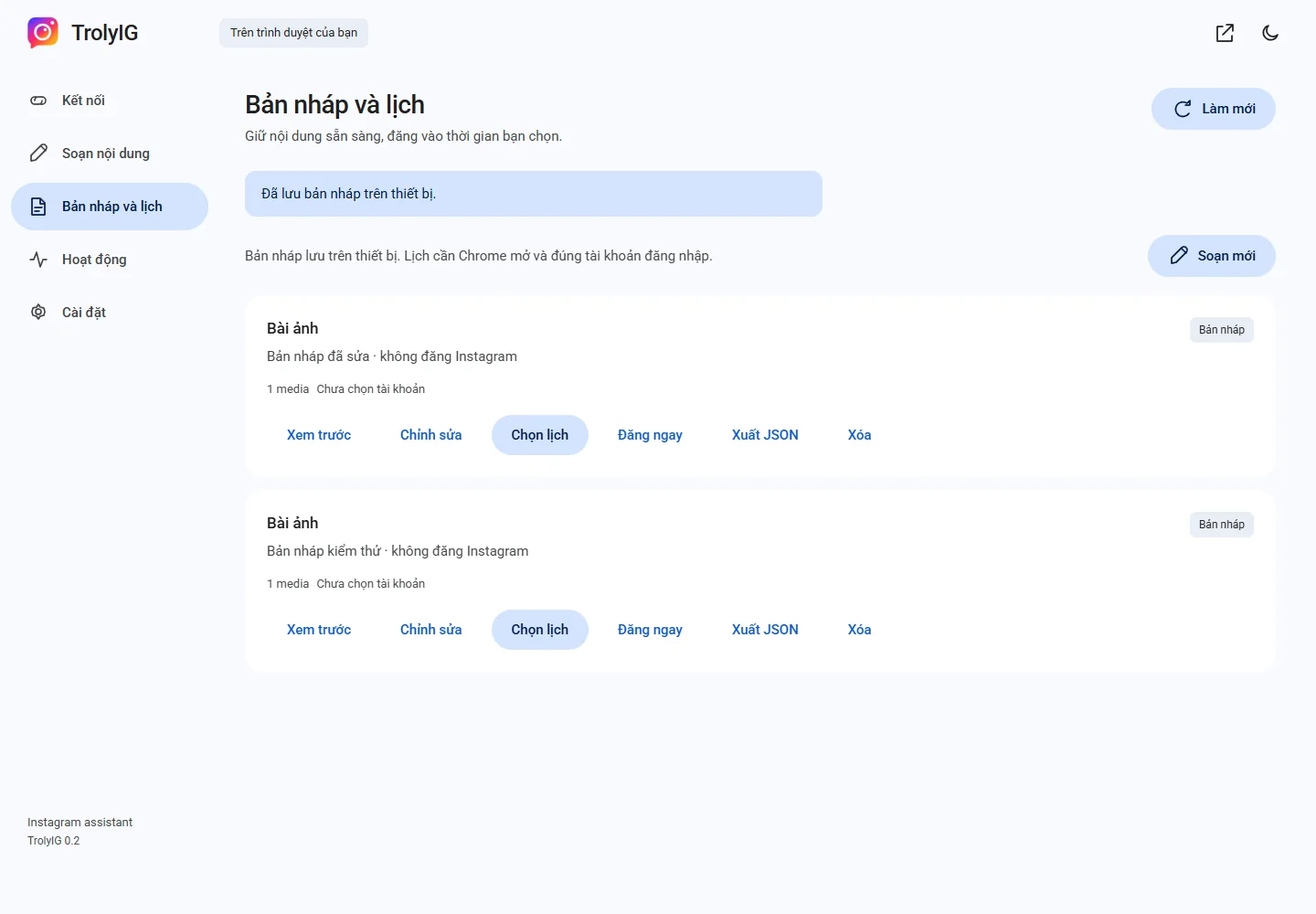
Choose a reviewed draft
In Bản nháp và lịch, open Xem trước if needed, then choose Chọn lịch on an eligible local draft.
Enter the date and time
Choose a time according to the computer’s clock. Check its time zone if planning for another region.
Confirm the exact version
Read the content and account in the dialog. Confirm that you checked them, then choose Xác nhận lịch.
Monitor or cancel
Keep the computer awake and Chrome online. Use Hủy lịch if content is no longer appropriate, or read the reason a schedule did not run.