

Skip to guide

TrolyPage

An autonomous Marketing & Sales operating system for businesses that want AI-powered omni-channel growth.

Contact Info

Follow Us

Install Website Chat on your site.

Choose your platform for a dedicated WordPress, Shopify, Wix, or other installation guide. Every method uses your own channel’s snippet.

How do you manage your website?

Both methods use the same installation code from your Website Chat channel.

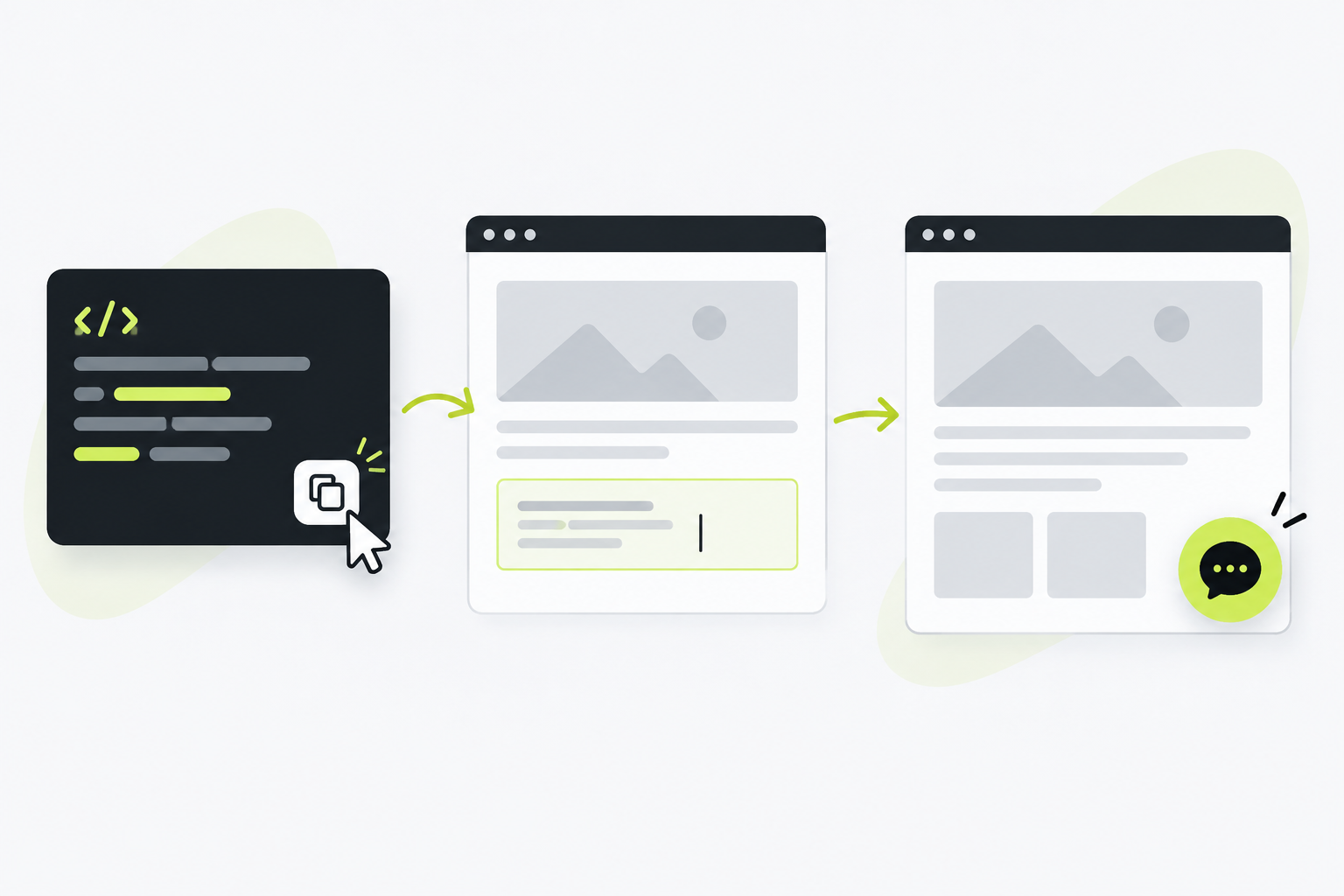
Three-step illustration: copy the embed code, place it on the website, then check the chat bubble on the live page.
Original TrolyPage illustration, not a platform screenshot.

Before you paste the code

The snippet belongs to your channel. Do not copy an illustrative snippet or fill in a token yourself.

  1. Open StudioSign in, go to Channels → Website Chat, and select the channel to install.
  2. Publish the configurationSelect Publish before checking the website.
  3. Copy the installation codeIn Install, select Copy code. It already includes the correct token and server address.

Place the code on your site

Use the site-wide script area. You never need to edit the widget source.

HTML / React

You can edit the shared layout or site source.

  1. Open your shared layout or website footer.
  2. Publish the configuration in Website Chat Studio and copy this channel’s installation code.
  3. Paste it just before the closing </body> tag, deploy, and open a real page to verify.
Placement example — not your installation code
<!-- Nội dung website / Your website content -->
<script async src="…/webchat/widget.js"
  data-token="YOUR_CHANNEL_TOKEN"
  data-server="YOUR_TROLYPAGE_SERVER"></script>
</body>

CMS

Your site has a site-wide custom code area.

  1. Open the site-wide custom code injection settings.
  2. Choose Footer or Before body end and paste the code copied from Studio.
  3. Save, clear the CMS cache if needed, then open your website to confirm.

Ask ChatGPT or Claude to install it

Works even if your website is not listed. Replace the placeholder with your Studio snippet, adjust the prompt if needed, then send it to an AI assistant with website access.

The button only copies; it does not send data. Without website access, the assistant should guide you. Never share admin passwords or API keys.

You can edit the text before copying.

Verify on a real page.

Open a page containing the code, then return to Install in Studio and select Check again. A Studio preview does not count as a website signal.

Go to Website Chat

If the widget is not detected

  • Confirm the Studio configuration is published and the website change is deployed.
  • Check the snippet is on the intended page and installed only once.
  • Check allowed domains in Studio; clear CMS/CDN cache if needed.
  • Open the live page, allow it to load, then select Check again.

What can TrolyPage help with?

Pick what you want to improve. TrolyPage will call you with advice tailored to your needs.

Which features interest you?

Choose as many as you like.

Explore TrolyPage featuresWatch the 78-second video

We use your details to respond to your consultation request. Privacy policy