

Templates give recurring announcements and product content a starting point. Keep the useful structure, then update the facts and wording for the community you have chosen.
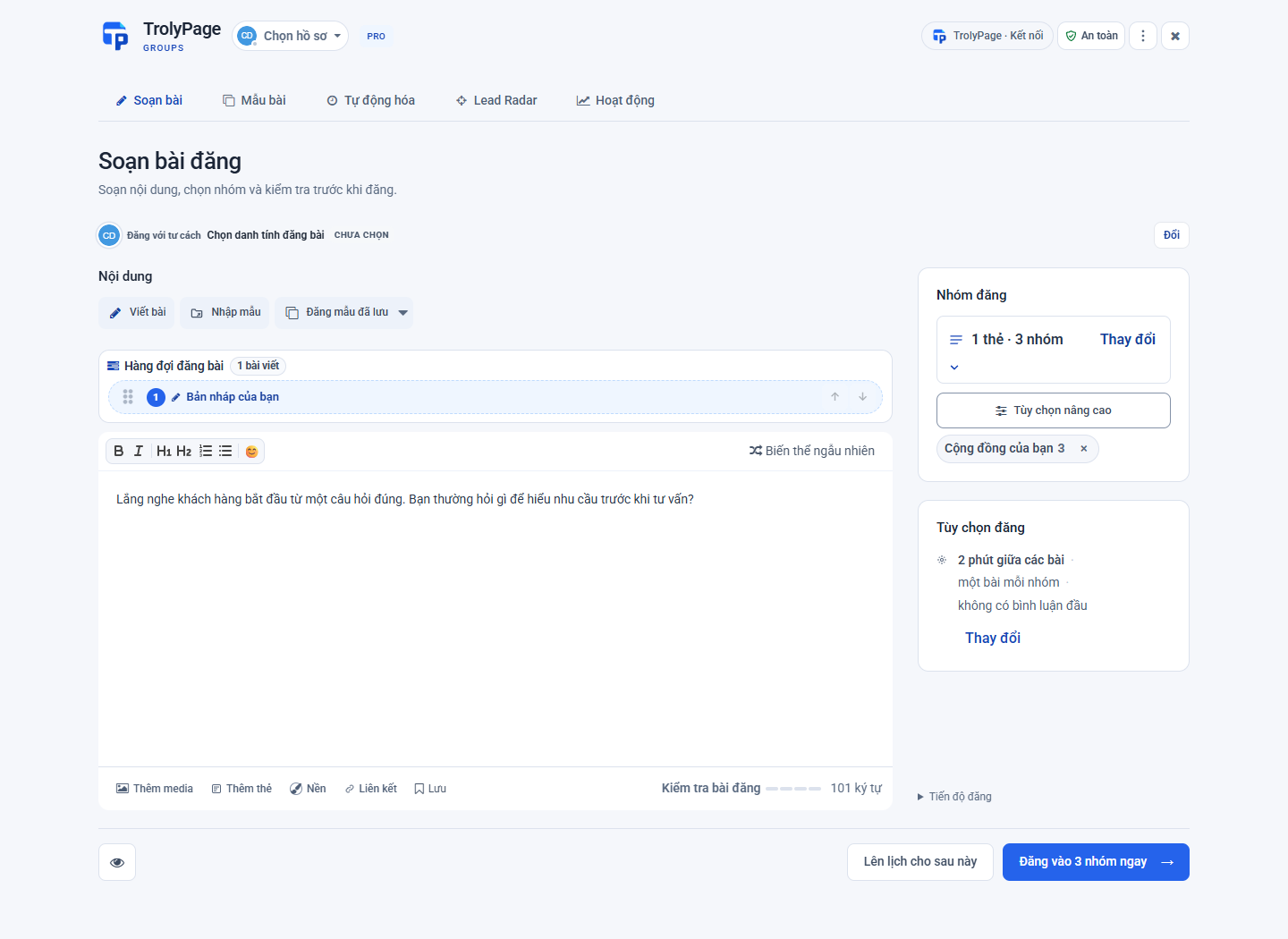
From preparation to results
Save a reviewed template
Write the content, check its facts and use the save-template control. Give it a recognizable purpose, such as “Weekend workshop announcement”. Avoid leaving old dates, prices or availability in a template you plan to reuse.
Fill a new post from a template
Choose a saved template in Compose, then update the timing, links and call to action. Recheck the posting identity and audience. Reusing content does not confirm permission in newly selected groups.
Prepare images or video
Use Add media in the extension and inspect the assets before running. If you rotate a media pool, make sure every image fits the post. A filename or thumbnail alone does not confirm the information shown in an image.
Review manual variations
Spintax uses a format such as {wording A|wording B}. Each choice should read naturally and preserve the facts. It helps prepare content; it does not replace following group rules. Read the final result before sending.
Add a first comment when relevant
If needed, write the first comment in the extension’s posting options. Check its links and wording as carefully as the post itself. Enable it only where appropriate; this is not a bot that automatically answers conversations.
Before you begin
- Manual extension posting and workspace deliveries have different media support. Social Posts currently accepts text and up to four JPEG/PNG/WebP images, 20 MiB total.
- AI drafting is optional after workspace pairing and permission. Manual templates do not require AI.