
Website Live Chat
2 min read
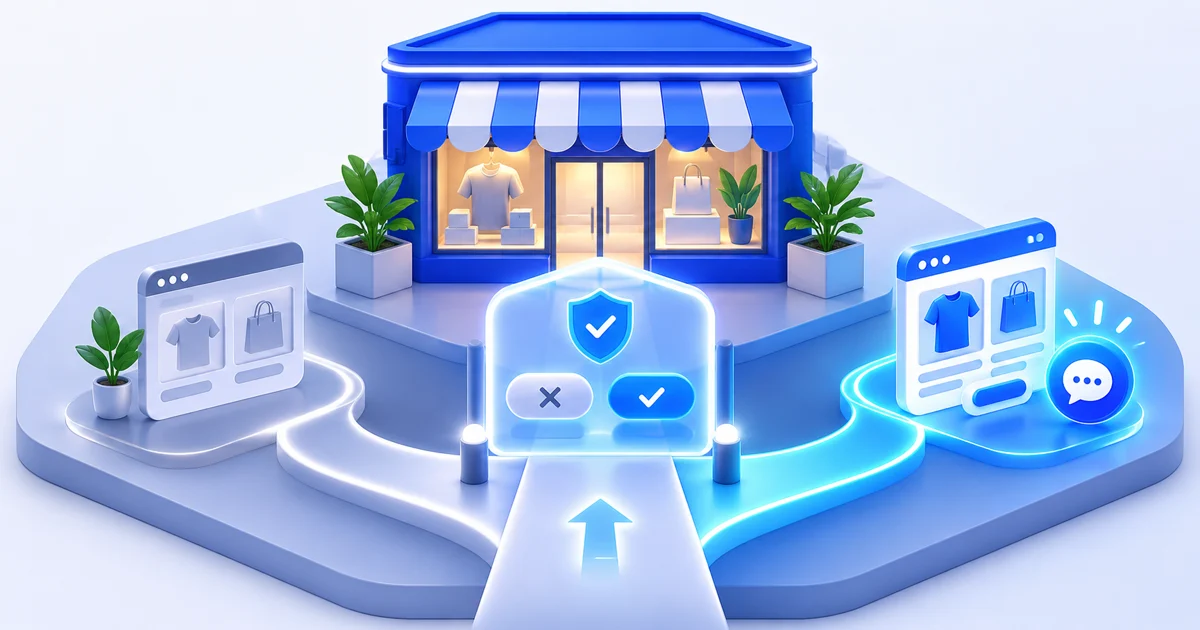
To add live chat to a BigCommerce store:
- Open Storefront → Script Manager → Create a Script.
- Name it, choose the Footer location and Storefront pages (or All pages).
- Paste the chat snippet and select the right consent category.
- Save and check the storefront.
Step by step
- Publish your Website Chat channel in TrolyPage Studio and copy the complete snippet.
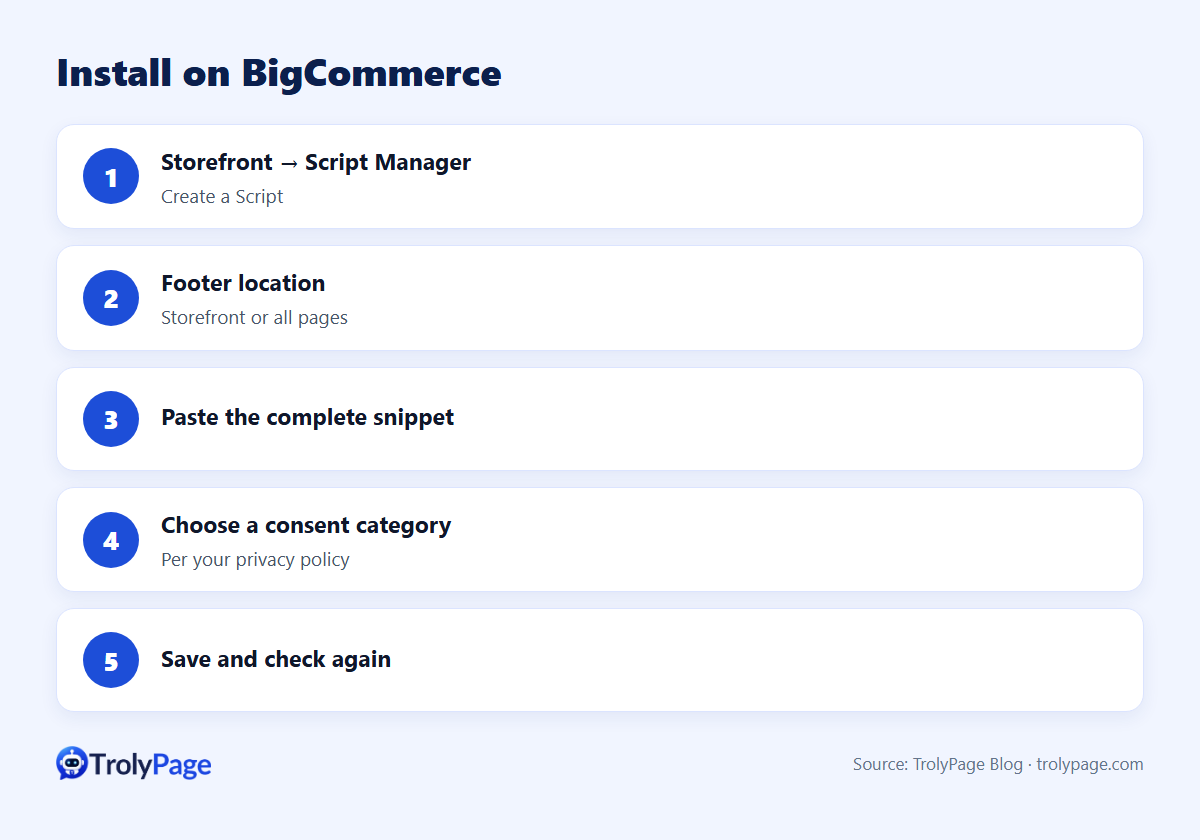
- In the BigCommerce Control Panel, open Storefront → Script Manager → Create a Script.
- Name it "TrolyPage Website Chat".
- Choose Footer, and Storefront pages or All pages as appropriate.
- Choose a script-content option and paste the complete snippet.
- Select the consent category required by your store's privacy policy.
- Save, open a public storefront page, then select Check again in Studio.
Guide: Install Website Chat on BigCommerce.
About consent categories
BigCommerce's Script Manager asks you to categorise scripts for cookie consent. Pick the category your privacy policy requires. If visitors decline that category, the script may not load for them, which is expected behaviour.
What to teach the AI agent
| Topic | Examples |
|---|---|
| Products | Specs, compatibility, variants |
| Shipping | Zones, carriers, delivery times |
| Returns | Window, conditions, process |
| B2B | Bulk pricing requests go to a person |
Test BigCommerce live chat after publishing
On a storefront with multiple channels, verify the script on the intended storefront and confirm an excluded storefront stays unchanged. Try a B2B pricing question and check that a person can pick it up with the original context.
FAQ
Can I show chat on checkout?
Script placement options for checkout differ; test the checkout separately and follow BigCommerce's guidance.
Is there a BigCommerce app?
Not required. It installs through Script Manager.
Written by the TrolyPage team. Updated November 2026.