

Website Live Chat
3 min read

To add live chat with AI replies to a WordPress site:
- Create and publish a website chat channel in your chat tool.
- Copy its embed snippet.
- Add the snippet site-wide in the footer, through a child theme's
functions.php(wp_footer) or a site-wide Custom Code field. - Clear caches and check the widget on a live page.
With TrolyPage Website Chat, no WordPress plugin is required.
Before you start
- Permission to edit the active child theme or a site-wide Custom Code field.
- On WordPress.com, JavaScript is restricted by plan, so check yours first.
- A backup of your site.
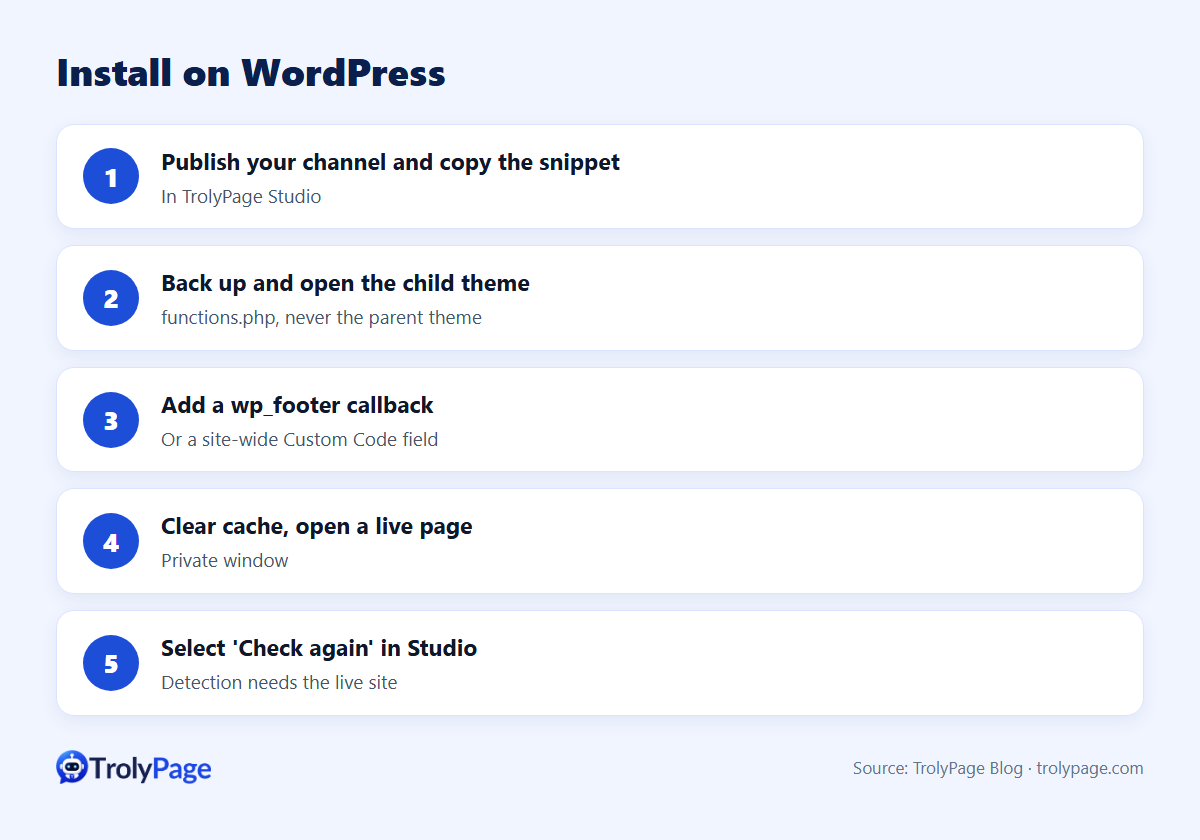
Step-by-step with TrolyPage Website Chat
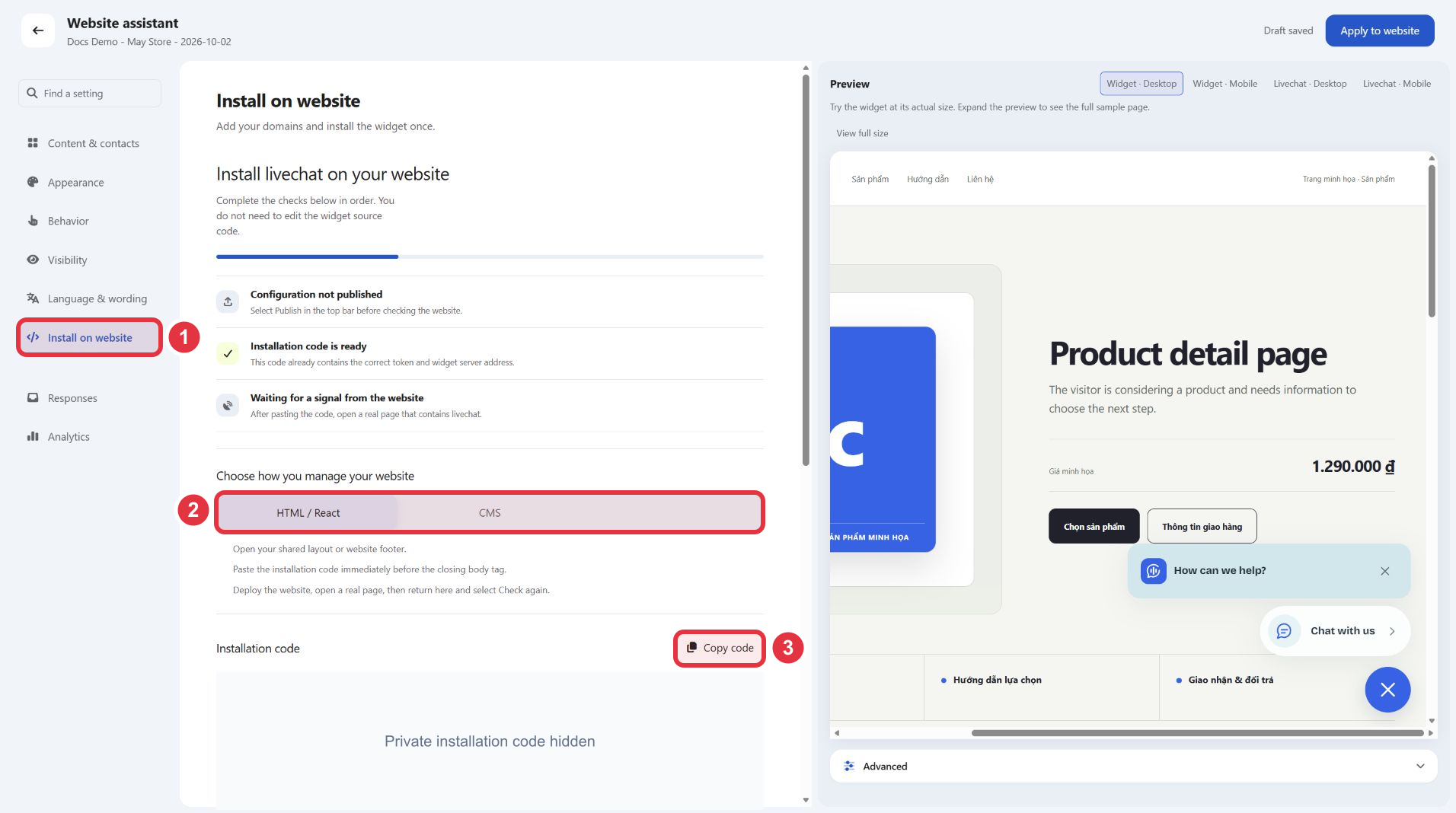
- Publish your channel in TrolyPage Studio and copy its complete installation snippet. It includes
src,data-tokenanddata-server. - Back up the site, then open
functions.phpin the active child theme underwp-content/themes. Don't edit the parent theme: updates may overwrite it. - Register a
wp_footercallback that outputs the copied script tag. If your theme or host provides a site-wide Custom Code field, paste the snippet into its Footer / Body end location instead. - Deploy and clear cache (site and CDN), then open a public page in a private window.
- Verify: back in Studio's Install section, select Check again. Detection needs a signal from the live site.
Full guide with illustrations: Install Website Chat on WordPress.
Troubleshooting
| Problem | Check |
|---|---|
| Widget doesn't appear | The theme must call wp_footer(); the channel must be Published; your domain must be allowed |
| Shows on one page only | The snippet was pasted into a single post instead of site-wide |
| Appears twice | The snippet was added in two places |
| Blocked | Caching, Content Security Policy or a script blocker |
| Studio still says not installed | Builder previews don't count; open a live public page, then Check again |
Adding AI replies
Once the widget is live, assign an AI agent trained on your products and policies to the website channel. Visitors get instant answers, and conversations arrive in the same TrolyPage inbox as Messenger, Instagram and Telegram, so your team can take over anytime.
Test WordPress live chat after publishing
Open an uncached public page and a second page that uses a different template. Check that the live widget appears once on each. Send a test message and confirm the right inbox receives it. Repeat after a theme or caching-plugin update.
FAQ
Will it slow down my site?
The script loads in the footer. Check performance with your usual tools after installing.
Is there a WordPress plugin?
Not required. TrolyPage Website Chat installs with an embed snippet; there's no native TrolyPage plugin.
Can an AI assistant install it for me?
The install page offers a copyable prompt for an AI assistant with website access. Never share admin passwords or API keys.
Written by the TrolyPage team. Updated November 2026.