

Install Website Chat on Shopify
Add the snippet to your store theme to show chat on storefront pages.
View the stepsWhere the code goes
A map of the platform UI. Labels can vary slightly by version or account language.
- Online Store
- Themes
- Edit code
- layout/theme.liquid
- </body>
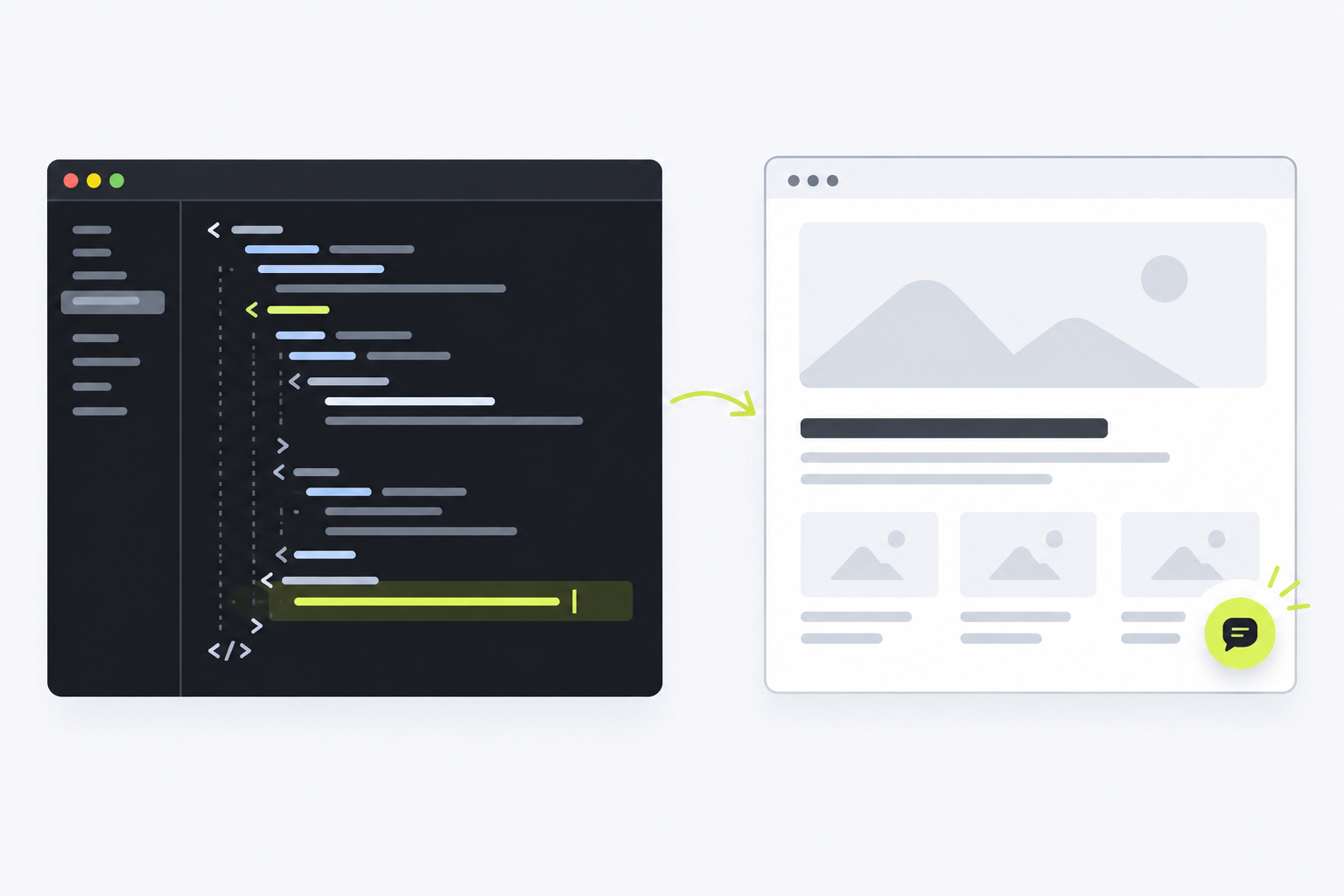
layout/theme.liquid
<script async
  src="YOUR_STUDIO_WIDGET_SCRIPT_URL"
  data-token="YOUR_CHANNEL_TOKEN"
  data-server="YOUR_STUDIO_SERVER_URL"
></script>
</body> Follow each step.
Every step uses your channel’s real Website Chat snippet; the example on the overview page is not deployable.
-
In Shopify Admin, open Online Store → Themes and duplicate the current theme as a backup.
-
Open the current theme’s actions menu → Edit code, then select layout/theme.liquid.
-
Find the closing </body> tag and paste the complete snippet from TrolyPage Studio just above it.
-
Save, open the public storefront (home and product pages), then check again in Studio.
Ask ChatGPT or Claude to install it
Works even if your website is not listed. Replace the placeholder with your Studio snippet, adjust the prompt if needed, then send it to an AI assistant with website access.
The button only copies; it does not send data. Without website access, the assistant should guide you. Never share admin passwords or API keys.
You can edit the text before copying.
Verify the installation
Open a public page with the snippet. Once the widget loads, return to your channel’s Install section in Studio and select Check again. Detection requires a signal from the live website.
Check in StudioIf the widget is missing
- This is a theme-code installation, not a Shopify App. Checkout-page coverage depends on Shopify and is not promised here.
- Confirm the channel is Published and your website domain is allowed.
- Check that the snippet appears only once and is not blocked by cache, CSP, or script blockers.
- Open a public page in a private window, then select Check again; builder previews do not replace a live page.
Platform UI steps were checked against official documentation. This is a code-installation method, not a native TrolyPage plugin or app for that platform.
Read Shopify documentation