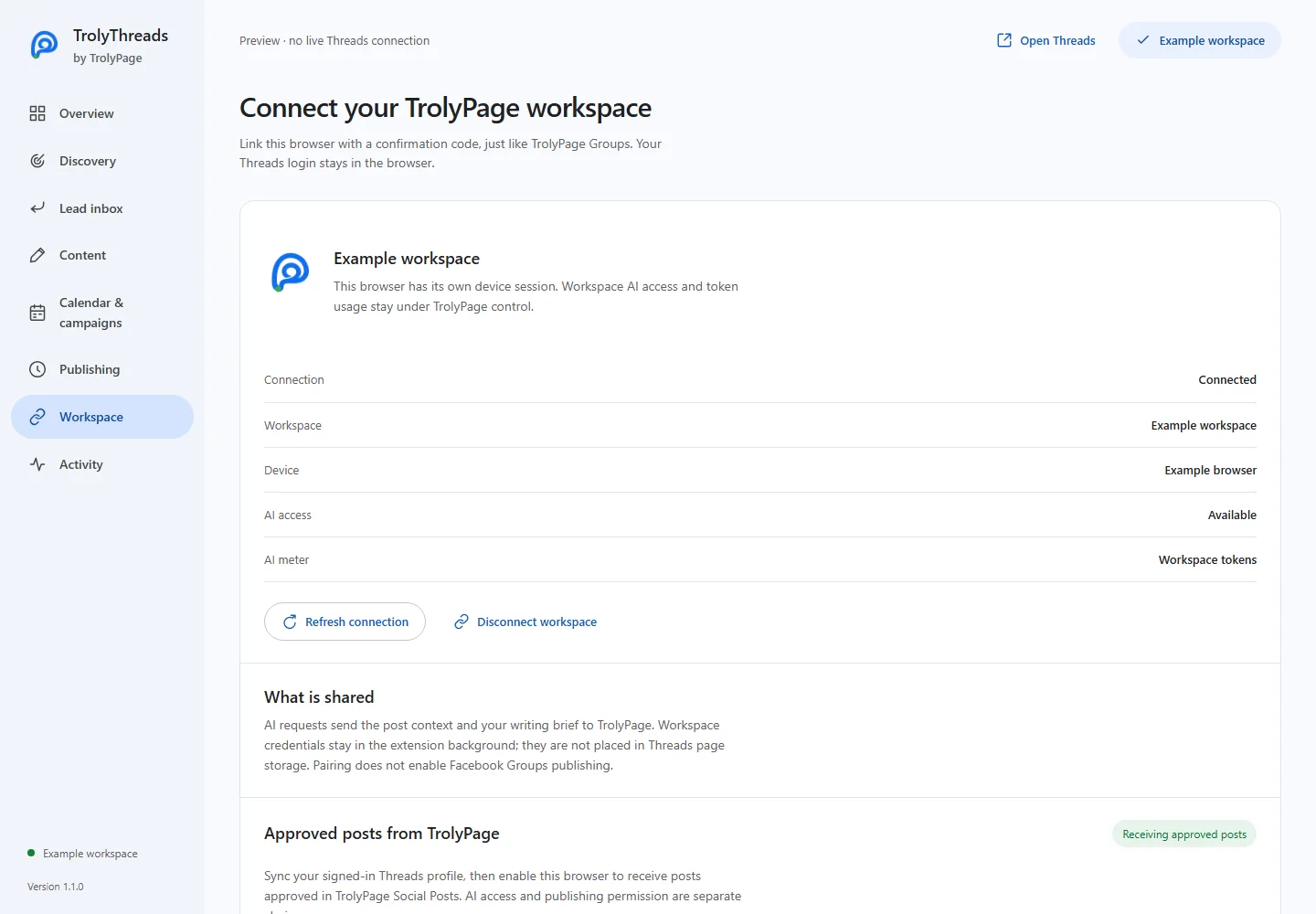

You need an appropriate TrolyPage workspace role and a signed-in Threads desktop tab. Manual content and browser schedules do not require this connection.
Before you begin
Check which workspace and Threads profile should be connected. AI permission and workspace publishing permission are separate. Use the connection only when those features are available in your TrolyPage environment.
Confirm the device code
Choose Connect TrolyPage in the extension. On the confirmation page, check the code and device, then choose the intended workspace. Do not approve a device or workspace you do not recognize.
Approve only the permissions you need
Grant AI if you want workspace drafting and grant publishing if this browser should receive approved Social Posts. An older connection without publishing permission must be disconnected and re-linked; refresh alone never adds that grant.
Review and sync the observed Threads profile
Keep an idle Threads tab signed in to the intended handle. In extension Workspace, enter that handle and the profile name, approve sync consent and choose Review & sync profile. Read the confirmation before syncing.
Enable approved posts and prepare the target
Use Enable approved posts separately after the profile is synced. In TrolyPage Social Posts, select the synced Threads target, prepare supported text/media and approve the post. Keep the browser and matching tab available.
Inspect the resulting delivery
Read the extension’s workspace delivery state and whether a result report is waiting to sync. A completed report and a published post are different things; needs_reconciliation still requires checking the actual Threads profile.
If permission or identity is wrong
Pause approved posts, correct the connection or re-link with the required grant. Changing the synced profile invalidates old approved deliveries. Reconcile an uncertain earlier send in TrolyPage before treating a new binding as permission to resend it.