
Facebook Messenger
3 min read
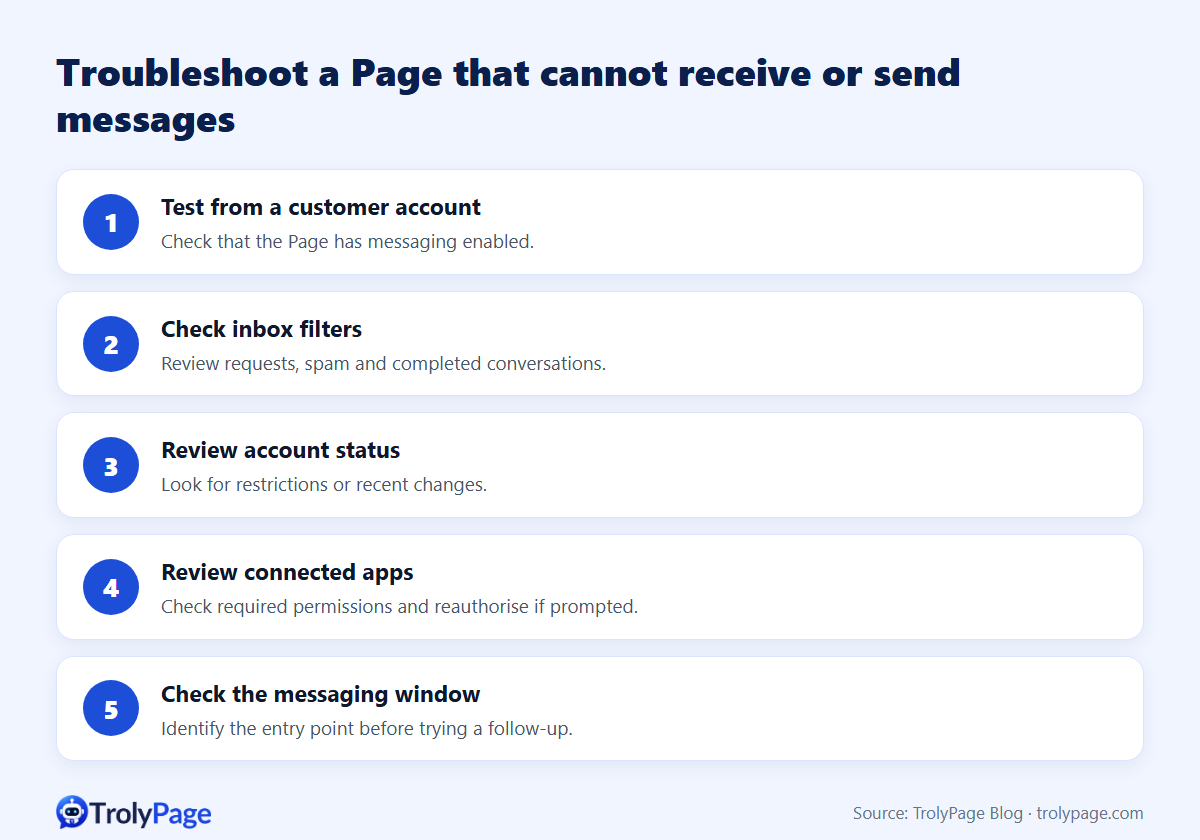
If your Facebook Page isn't receiving messages, or can't send them, check the problem in this order:
- Messaging is turned on for the Page.
- You're looking in the right inbox folder (requests, spam, done).
- The Page or account isn't restricted.
- Connected apps still have valid permissions.
- You're not sending outside Messenger's 24-hour window.
Most "lost message" problems turn out to be filters, folders or expired app permissions.
Step 1: Confirm messaging is on
- In Page settings, make sure people can message the Page and the Message button is visible.
- Send a test message to the Page from a personal account that isn't a Page admin.
Step 2: Check every inbox folder
- Message requests / Spam: messages from people Meta considers new or unusual can land here.
- Done / Archived: a teammate may have marked the chat as done.
- Filters in your inbox tool: "Unassigned", "Mine" or channel filters can hide conversations.
Step 3: Look for restrictions
- Check Page quality / account status for violations or messaging restrictions.
- A spike in block or spam reports, often after aggressive broadcasts, can trigger temporary limits.
- Some restrictions have an end date; others require an appeal.
Step 4: Check connected apps and permissions
If you use a chatbot or inbox tool:
- Confirm the app is still connected to the right Page.
- Re-authorise if the person who granted access left the business, lost their Page role or changed their password.
- Make sure two tools aren't fighting over the same conversations. Two chatbots replying to one customer causes chaos.
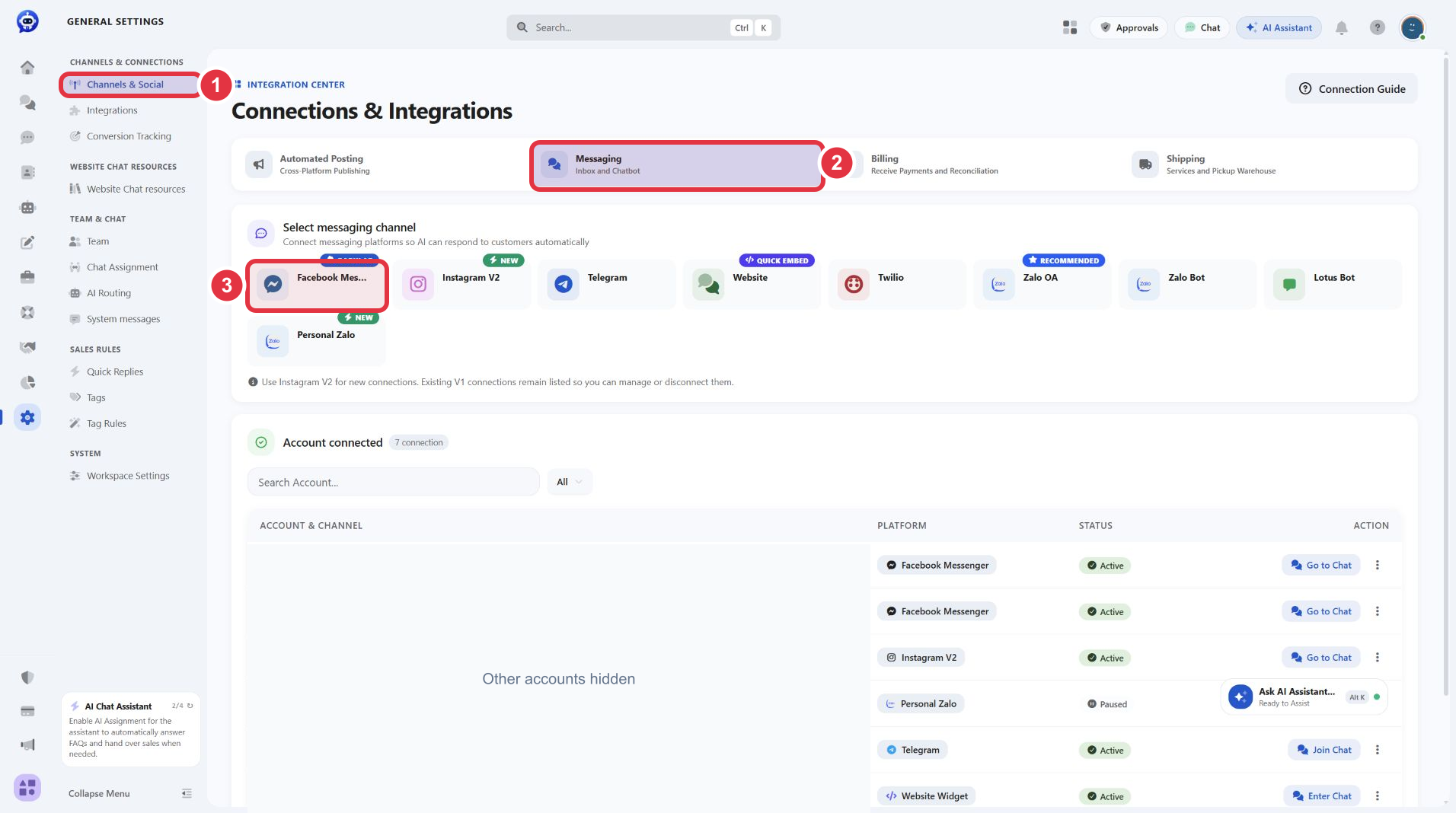
In TrolyPage, the connection list under Channels & Social → Messaging shows each connected channel. Open Go to Chat on the exact row to see that channel's inbox. An empty inbox doesn't prove the connection is broken: a new channel may simply have no synced conversations yet.
Step 5: Check the sending window
If you can read incoming messages but outgoing replies fail, check when the customer last wrote and how the conversation began. An expired send window is one possible cause. Confirm which exceptions are available in Meta’s messaging reference.
Quick checklist
| Symptom | Likely cause | Fix |
|---|---|---|
| No new messages at all | Messaging off, or wrong Page connected | Turn messaging on, re-check connection |
| Some messages missing | Requests/spam folder or a filter | Check folders, clear filters |
| Can't reply to old chats | Outside 24-hour window | Wait for the customer to message, or use an allowed exception |
| Tool stopped syncing | Expired or revoked permission | Reconnect with a current Page admin |
| Duplicate replies | Two automations active | Keep one auto-responder |
FAQ
Why do messages show in Messenger but not in my tool?
The tool's permission may have expired, or it's connected to a different Page. Reconnect with an account that manages the correct Page.
How long do messaging restrictions last?
It varies by violation. Check the notice in your Page's quality section for dates and appeal options.
Written by the TrolyPage team. Updated November 2026. Facebook menu names vary by Page and account.